
A Frozen Point Cloud in Revit: Tracing the Cause and Confirming the Fix
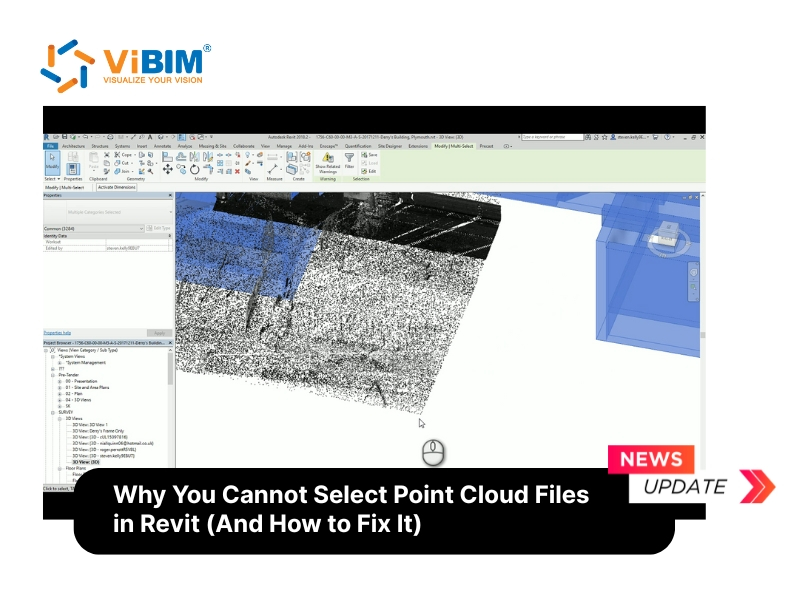
A designer opens a project, links a point cloud, and clicks it. Nothing happens. The cursor moves, the view pans, and the scan looks untouched, yet the data refuses to be selected. The first instinct is to suspect a corrupted file. A better instinct is to verify, in order, what Revit is actually doing.
Step one: rule out the file
Point cloud data arrives as RCP or RCS files. Before blaming settings, check that the format you linked is one Revit accepts. If the file loads and displays, the format is fine, and the data is almost certainly intact. A scan that draws correctly but ignores clicks points to selection rules rather than to damage.
Step two: read the selection rules
Revit applies Selection Control filters to linked references. When those filters are off, the viewport ignores clicks on that content. This is deliberate. The software protects referenced data so nobody shifts its coordinates by accident while working nearby. Teams who run into the Revit cannot select point cloud issue often discover that the lock was a safeguard all along, and the guide on Revit cannot select point cloud walks through the exact toggles involved.
Step three: change the two toggles
Open the Modify tab, find the Select drop-down on the left of the panel, and enable Select Links and Select Pinned Elements. The same filters sit behind the chain-link icon in the Status Bar at the bottom right, which is quicker during a busy session.
Step four: confirm
Click the point cloud again. If it highlights, the cause was the selection setting, and the check is complete. If it still does not respond, return to step one and revisit the file format.
After the fix
Selecting a scan is only the start of using it. Point cloud data has to be turned into Revit elements, and that conversion has its own accuracy targets and scope. Where the scan must support an as-built deliverable, teams often bring in specialist scan to BIM modelling services to validate the imported survey data and build the model to the required scope.
A habit worth keeping
Treat each unresponsive viewport as a verification exercise, not a crisis. Check the format, check the selection filters, change the toggles, and test the click. Four short checks usually settle the matter and keep the project moving without anyone re-importing or rebuilding a scan that was never broken.